
Tasks & Worktrees
Tasks are the core unit of work in Vibora. Each task represents a piece of work that runs in an isolated git worktree with an AI coding agent (Claude Code or OpenCode).
How Tasks Work
When you create a task:
- A new git worktree is created from your repository's main branch
- A terminal is opened with your configured AI agent (Claude Code or OpenCode)
- The task appears on the Kanban board in the "In Progress" column
- Status syncs automatically when using the Claude Code plugin
Task States
| Status | Description |
|---|---|
| In Progress | Active work happening |
| In Review | Waiting for review or approval |
| Done | Work completed |
| Canceled | Task abandoned |
With the Claude Code plugin installed, status changes automatically:
- When Claude stops and waits for input → In Review
- When you respond to Claude → In Progress
Creating Tasks
From the Navbar
Click the + button in the top navigation bar to open the Create Task dialog. Select a repository, enter a task name, and optionally link to a Linear ticket.
From the Repositories View
- Navigate to Repositories
- Click New Task on the repository
- Enter a task name
- Optionally link to a Linear ticket
Managing Tasks
Kanban Board
The Kanban board shows all tasks organized by status. Drag tasks between columns or use the task menu for actions.
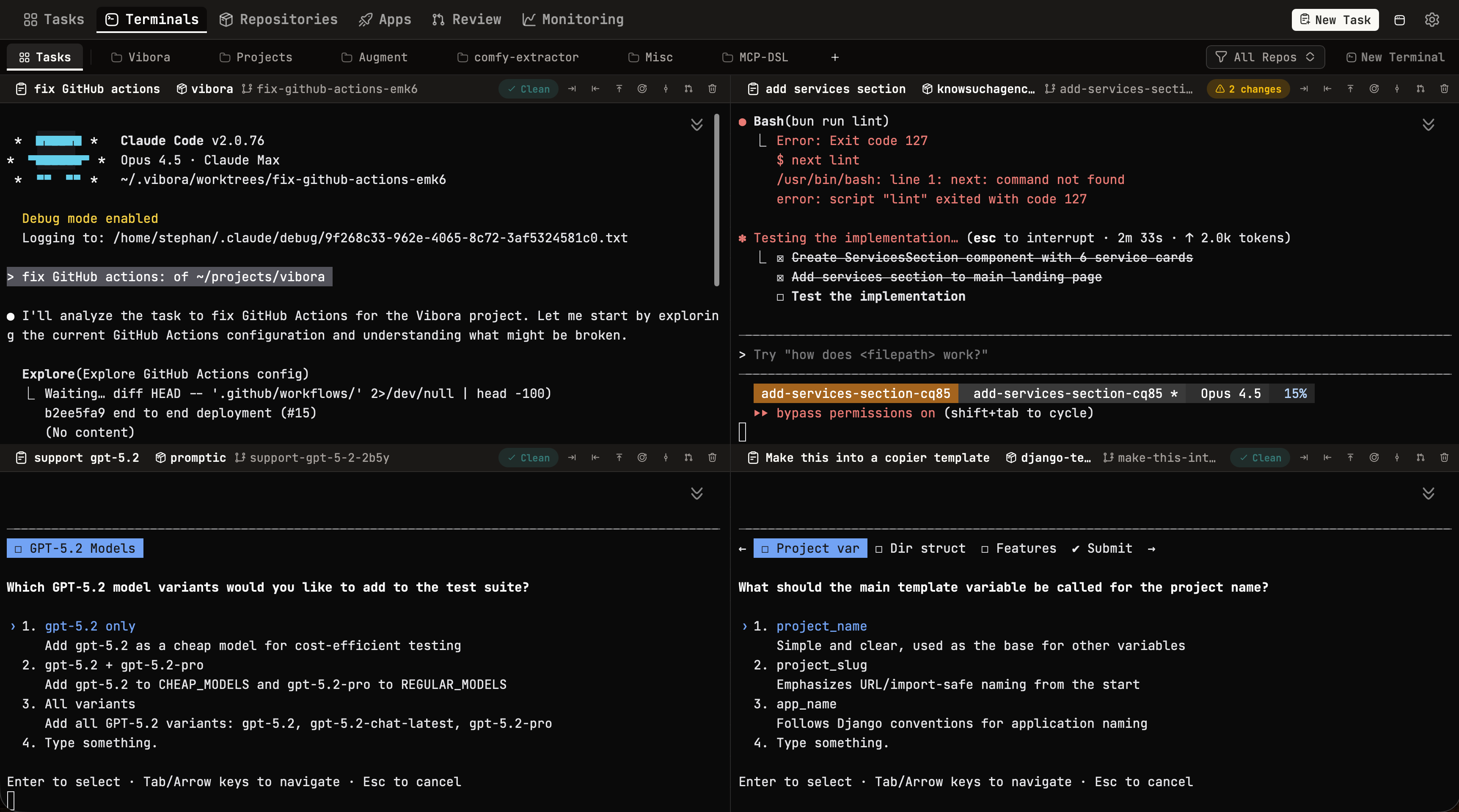
Task Terminals View
See all AI agent sessions across every task in one parallel view. This is the killer feature for orchestrating multiple agents.
Task Detail View
Click on a task to open the detail view with a split-pane layout:
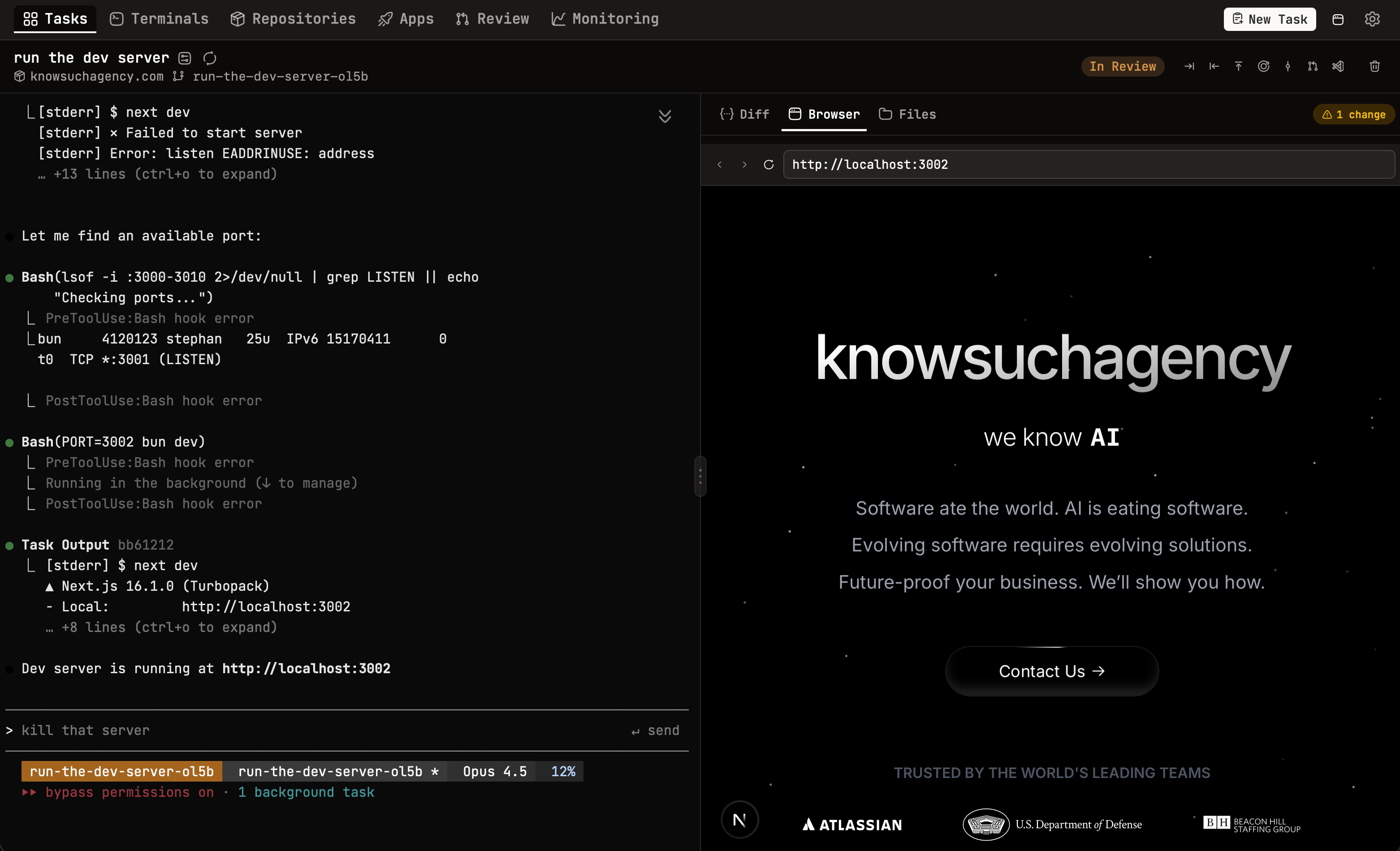
The left panel shows the AI agent terminal. The right panel has three tabs:
- Diff — View all changes made in the worktree compared to the base branch
- Browser — Integrated browser to preview your app as your agent works on it
- Files — Browse and edit files in the worktree
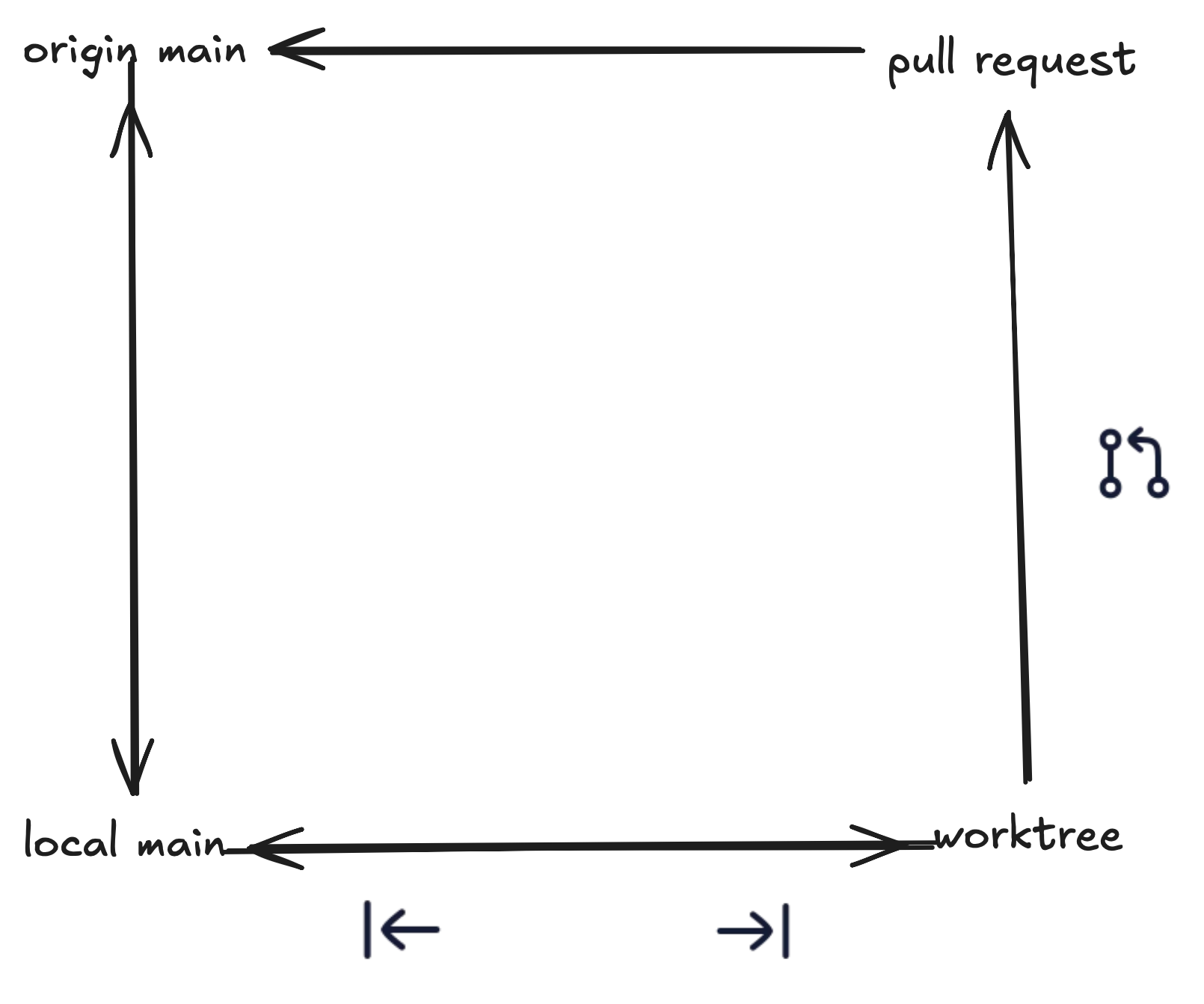
The header contains quick-action buttons for common git operations:

| Button | Action |
|---|---|
| →| | Pull from main — Rebase your worktree onto the latest base branch |
| |← | Merge to main — Squash merge your worktree into the base branch and mark task as done |
| ↑ | Push to origin — Push your worktree branch to the remote |
| ⟳ | Sync parent — Pull the latest changes from origin into the parent repo's base branch |
| ⑂ | Commit — Send a commit prompt to Claude Code |
| ⎇ | Create PR — Create a pull request from your worktree branch |
| 🗑 | Delete — Delete the task and optionally its worktree |
The diagram below shows how these operations relate to each other:
If a git operation fails, you'll see a toast with a "Resolve with Agent" button that sends a detailed prompt to your AI agent to help fix the issue.
Git Worktrees
Each task runs in its own git worktree. This provides:
- Isolation — Changes in one task don't affect others
- Clean main branch — Your main branch stays untouched
- Easy cleanup — Delete the task and the worktree is removed
- Parallel work — Work on multiple features simultaneously
Worktree Location
Worktrees are created in ~/.vibora/worktrees/ by default (or $VIBORA_DIR/worktrees/).
Linking to Linear
Link a task to a Linear ticket when creating it, or add a link later via the task settings. When task status changes in Vibora, the linked Linear ticket updates automatically.
Associating Pull Requests
Use the Create PR button in the task detail view, or link an existing PR via task settings. PRs are visible on the task card and in the PR Review view.